Building an AI Chatbot for Tableau with Claude, MCP, and Dashboard Generation
Architecture, demo, canvas mode, and on-prem compatibility
The Problem
Every BI tool in 2025 now has an AI button. Tableau is no exception: Pulse, Tableau Agent, AI-driven analytics. These are solid features. But they come with a significant limitation: all of them are Cloud-exclusive. If you’re running Tableau Server on-premises, and a significant number of organizations still are, you don’t get any of this.
I wanted to build an AI assistant that sits directly inside a Tableau dashboard, queries your actual data in real time, and works on both Cloud and Server. Not a third-party tool in a separate tab. Not a BI copilot that requires exporting data first. A native Tableau extension that lives inside the dashboard itself.
The result has two core modes. The first is a chatbot: you type a question in natural language, the AI queries the datasource and responds with real numbers and an appropriate chart. The second is dashboard generation: you describe what you want in a single prompt, and the AI builds a full dashboard on a drag-and-drop canvas with KPI cards, charts, tables, and insights.
Architecture
At the center of the system is the MCP server. MCP stands for Model Context Protocol, an open standard from Anthropic that lets AI models interact with external tools. Tableau has released an official MCP server with three core capabilities: listing available datasources, retrieving field metadata (dimensions, measures, types), and executing data queries.
The data flow works as follows. The Tableau extension (written in React) is embedded in the dashboard and communicates with a Python backend (built on FastAPI). When a user asks a question, the backend forwards it to Claude (Anthropic’s large language model). Claude analyzes the request, determines it needs data, and invokes the Tableau MCP server. The MCP server authenticates using a Personal Access Token (PAT) and runs the query against the datasource via VDS API. The results travel back through the chain, Claude formulates a response, and the extension renders it.
What makes this approach universal is the authentication layer. The MCP server uses PAT and communicates through standard Tableau APIs, specifically REST API and VDS API. These APIs are identical on Cloud and Server. The same setup works regardless of the platform. For on-prem environments, this is, to my knowledge, the only approach available today for bringing AI capabilities into Tableau dashboards.
For this demo, the backend and MCP server are deployed as external web services, but they can just as easily run internally, behind a firewall.
Ask Mode
The first mode is deliberately simple: a chat panel embedded directly inside a Tableau dashboard. The extension runs next to the standard Superstore datasource, receives dashboard context through the Tableau Extensions API, and sends the user’s question to the backend.
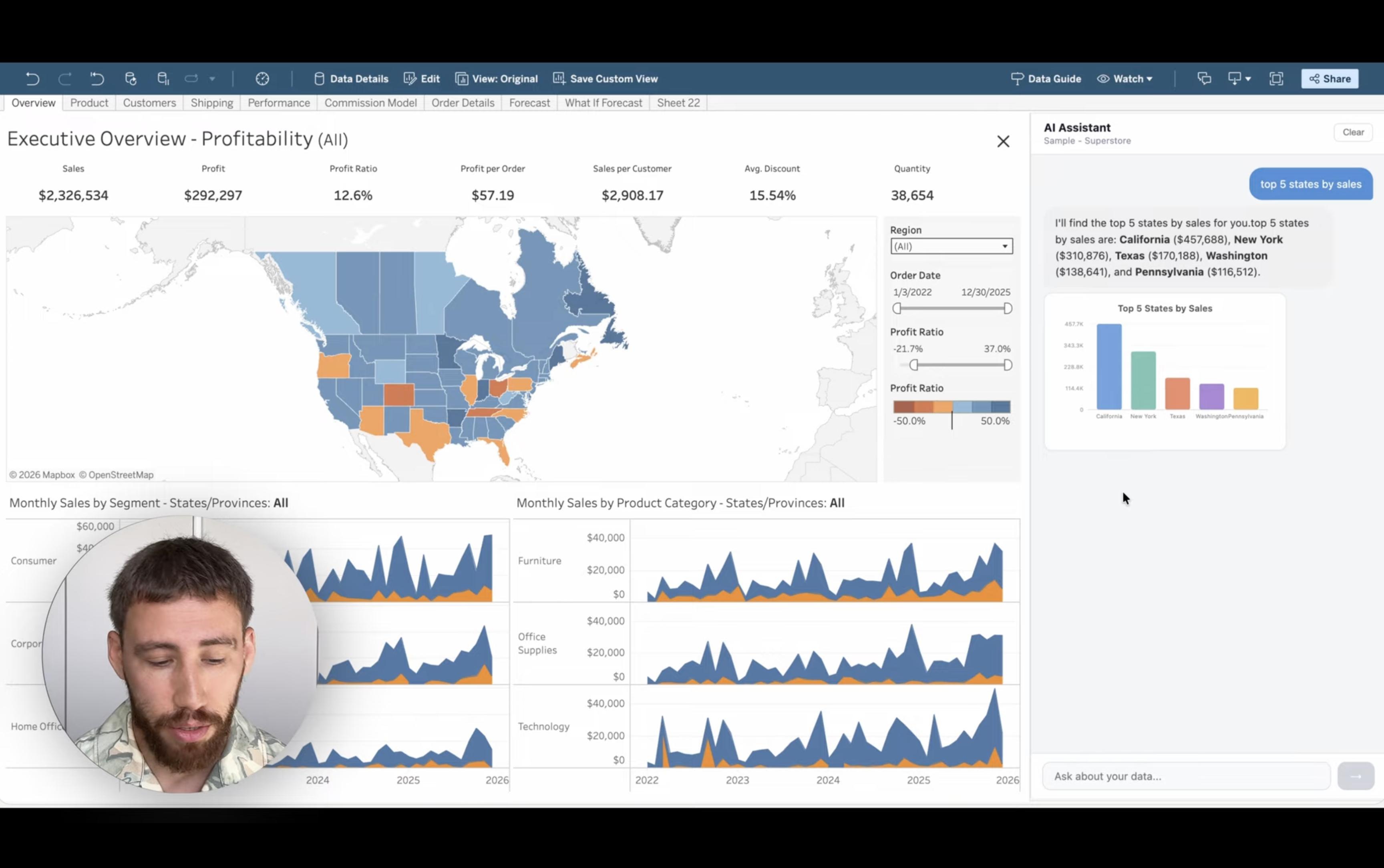
A question like “Top 5 states by total sales” returns a horizontal bar chart with California, New York, Texas and the actual sales figures from the datasource. “Monthly sales trend for the last year” produces a line chart. The model chooses the visualization type based on the shape of the request, but every number comes from a real query through MCP, not from the language model’s memory.
This is NLQ (Natural Language Querying) in practice. No worksheets to build, no fields to drag. The AI also responds in whatever language you write in, whether that’s English, Russian, or German.
Full Mode and the Canvas
The extension also supports a second layout. To activate it:
- Open the dashboard in Web Edit mode.
- Select the layout container with the original sheets.
- Pull out the Show/Hide button and click Hide. The sheets container collapses and the extension fills the screen.
- Open the extension settings and enable Full Mode.
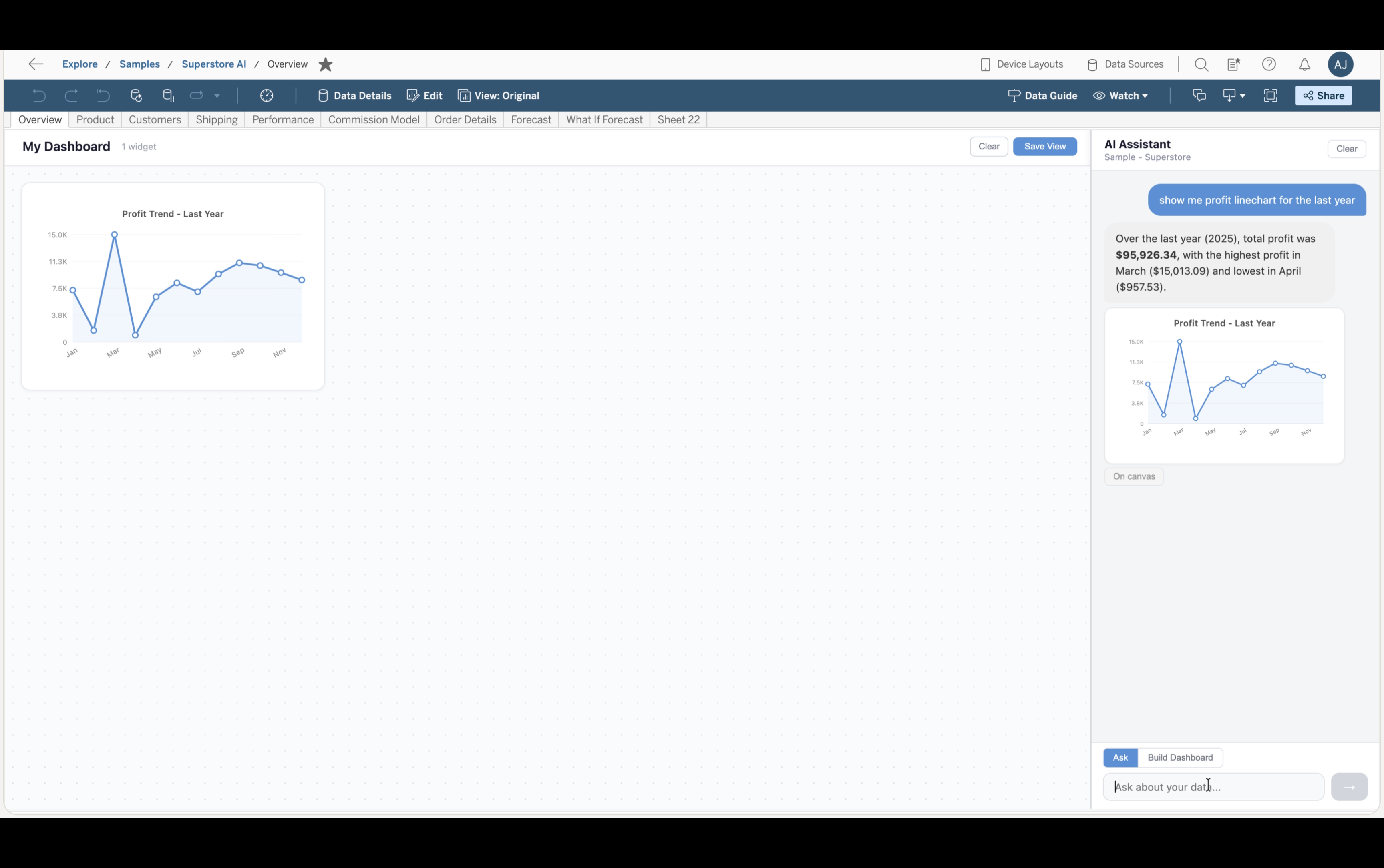
The layout now splits into two parts: a canvas on the left and the chat on the right.
In this mode, every chart the AI generates gets an “Add to canvas” button. One click places the widget on the canvas, where it can be dragged, resized, and rearranged. The layout is saved through the Tableau Extensions Settings API and persists for anyone who opens the dashboard.
Dashboard Generation
Beyond individual questions, the extension has a Build Dashboard mode. You type a prompt like “Sales performance dashboard” and the AI plans the structure, then executes each part sequentially, querying real data for every widget.
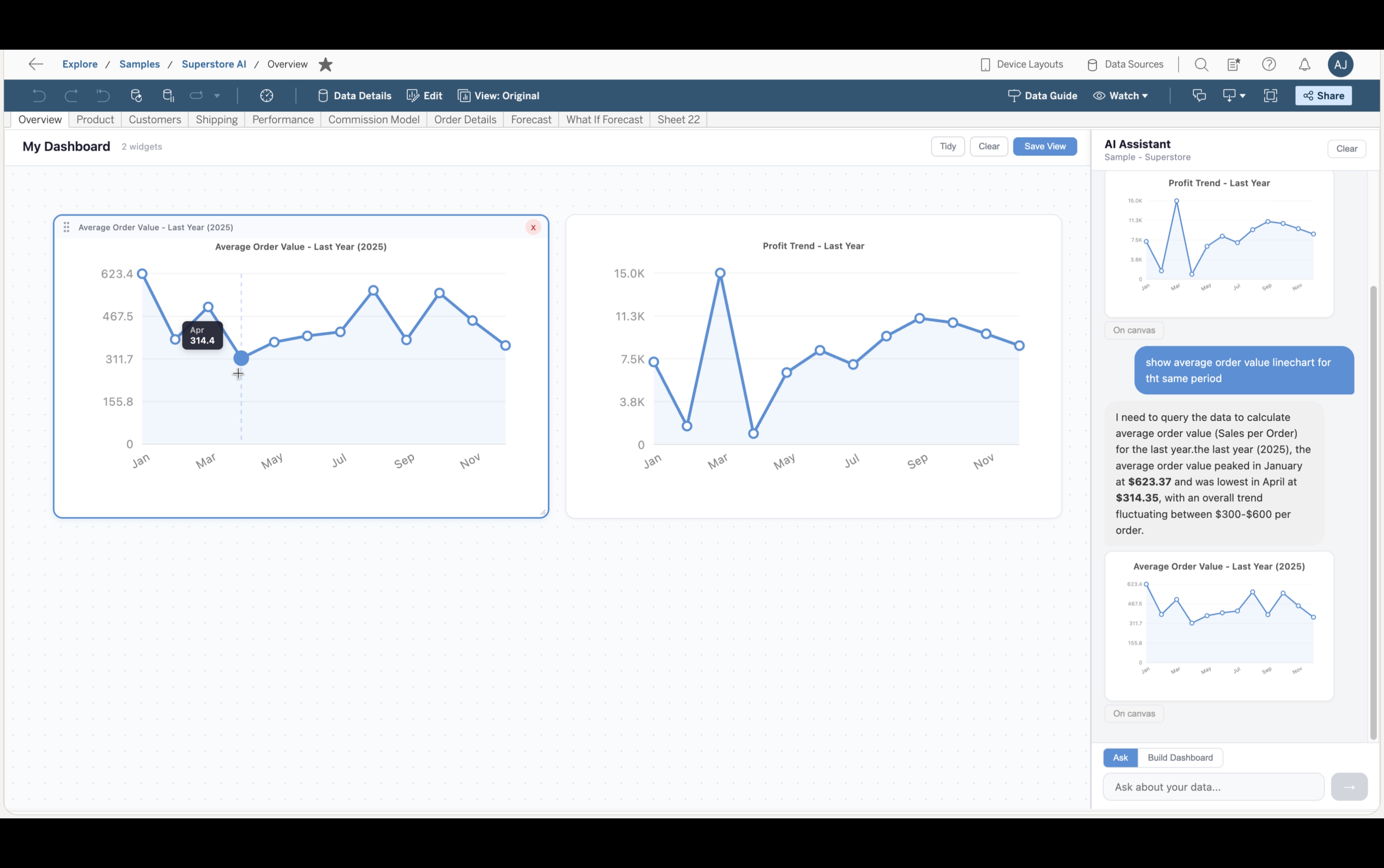
The result: KPI cards at the top, charts with category breakdowns and comparisons in the middle, a detail table, and an insights card with data-driven observations at the bottom. Everything can be dragged, resized, or deleted. The Tidy button snaps widgets to a grid, and Save persists the layout.
Limitations
This is not going to produce a perfect dashboard. And it will not produce the same result twice. Every generation is different: sometimes you get a useful trend chart, sometimes the AI skips it entirely. Chart types vary, and the layout shifts.
There are ways to work with it. More specific prompts produce more predictable results. You can switch to Ask mode and add missing charts one by one. And sometimes a rough dashboard generated in seconds is exactly what is needed: a quick visual playground to explore data and spot patterns before committing to a proper build.
On-Prem Compatibility
If you are on Tableau Server on-prem, you currently cannot use Pulse, Tableau Agent, or the newer Cloud-exclusive AI features. For many organizations, Cloud is not an option.
This architecture is platform-agnostic. The MCP server uses PAT and standard REST/VDS APIs, which are available across Tableau Cloud and Tableau Server. Everything works the same way behind a firewall. Row-Level Security, governance policies, and extract schedules all carry through. The AI respects whatever permissions the PAT user has.
Tech Stack
- Frontend: React inside a Tableau dashboard extension
- Backend: Python FastAPI for request orchestration and streaming responses
- AI layer: Claude by Anthropic
- Data access: Tableau MCP Server, REST API, and VDS API
- Persistence: Tableau Extensions Settings API for saved canvas layouts